How to add ACT and Pre-ACT scores?
Import your score file, or type the scores in by hand.
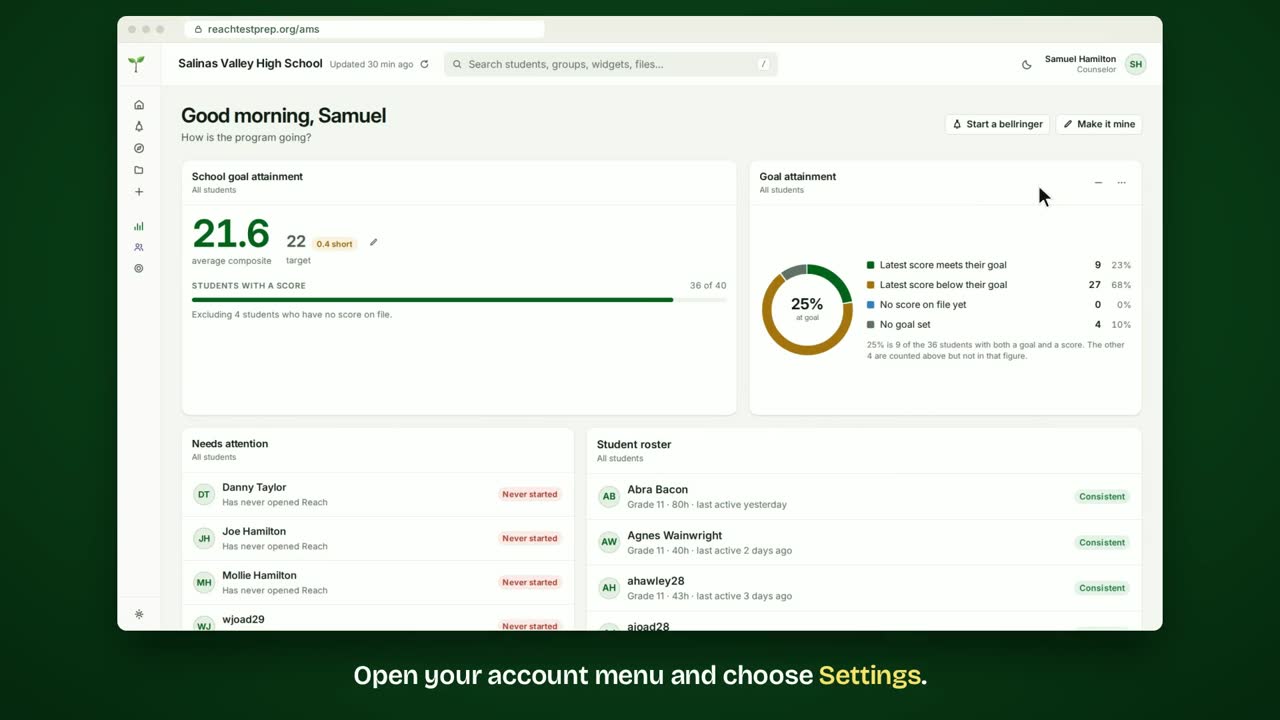
Step by step
- Open your account menu and choose Settings.
- Then open the Scores tab.
- Click Import a CSV. It reads the score files ACT and districts send.
- Click Choose a CSV and pick the file from your computer.
- The AMS matched each column. If it guessed one wrong, change it here.
- Below, each row shows the student it matched, and their scores.
- Name the sitting, and give the date it was taken.
- Then click Save.
- The sitting is added, and each student's page shows their scores.
- No file? Click Add a sitting and type the scores in by hand.
- Choose how much detail you have: one average, or a score for each student.
In short
Open your account menu, then Settings and Scores. Click Import a CSV and choose the score file. Check what the AMS read, then click Save. No file? Click Add a sitting and type the scores in.
ACT® is a registered trademark of ACT Education Corp. Reach Test Prep isn’t affiliated with ACT. Spotted something out of date? Email reach@reachtestprep.org.