How to rename students?
Name students from a roster, or search for one student and name them.
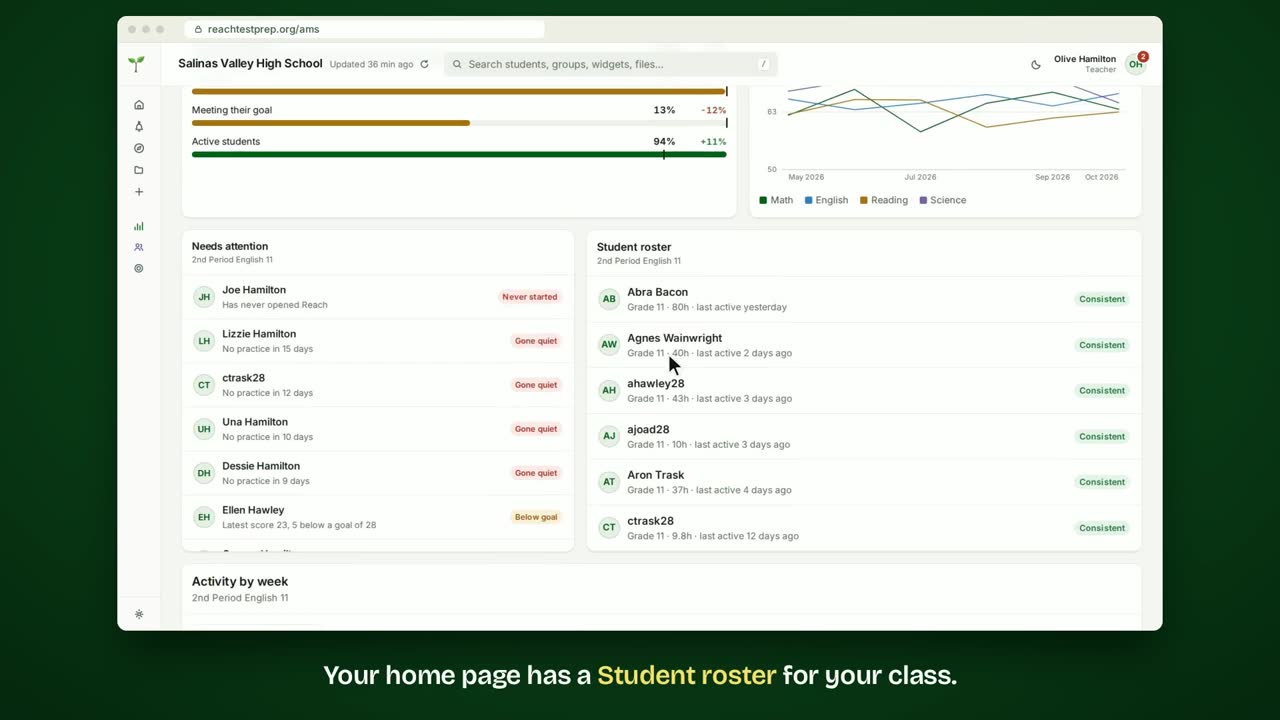
Step by step
- From a Student roster.
- Your home page has a Student roster for your class.
- A student without a name shows the start of their email, like ahawley28.
- Point at the student and click the pencil.
- Type the name your school knows them by.
- Press Enter to save. The next student opens, ready to name.
- Press Esc when you're done.
- Everyone at your school now sees their names.
- From search.
- To find one student, click the search bar.
- Type part of their name or email.
- Click the student to open their page.
- Click the pencil next to their name.
- Type their name, then click Save.
In short
In a Student roster, point at a student and click the pencil. Type their name. Enter saves it and opens the next student. Or search for one student, open their page and click the pencil by their name.
ACT® is a registered trademark of ACT Education Corp. Reach Test Prep isn’t affiliated with ACT. Spotted something out of date? Email reach@reachtestprep.org.