How to see one student's data?
Every student has a page with their practice, accuracy, goal and answers.
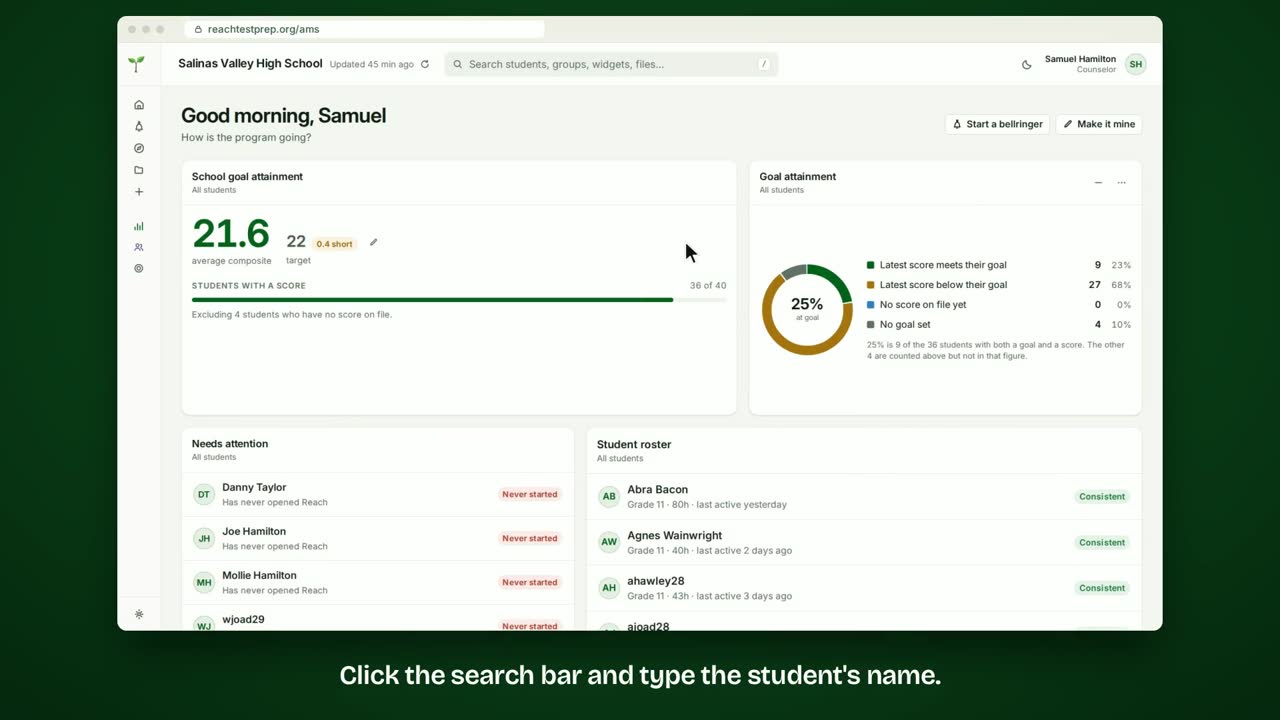
Step by step
- Click the search bar and type the student's name.
- Click the student to open their page.
- The top shows their last 30 days, next to the school average.
- Their goal sits beside it, with their latest score.
- Below are their accuracy, session by session and by subject.
- And a calendar of the days they practiced.
- Click Question history to see every question they've answered.
- Each row is one answer: the question, their answer, the right answer and how long they took.
- Filter by subject, game or result. Here, just the ones they got wrong.
- Click As in the app to see each question the way they saw it.
In short
Search for the student and click their name. Their page shows practice, accuracy, their goal and a calendar. Click Question history for every answer, and filter it.
ACT® is a registered trademark of ACT Education Corp. Reach Test Prep isn’t affiliated with ACT. Spotted something out of date? Email reach@reachtestprep.org.