How to see which questions students skip?
Find the questions your students skip most, and how the rest answered.
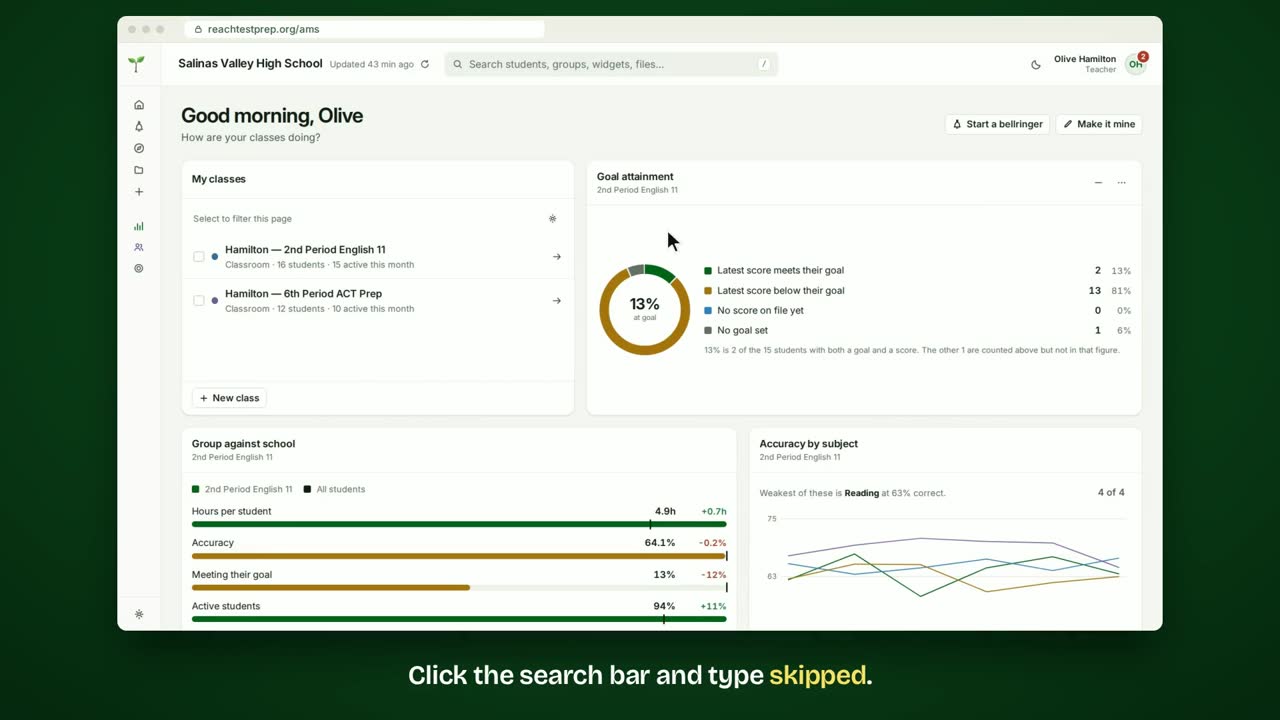
Step by step
- Click the search bar and type skipped.
- Choose the Most missed widget.
- Click Skipped to switch to the questions students skip most.
- The widget is now Most skipped, with the most skipped question first.
- Under it, you see how many skipped it, and what the rest answered.
- Use the arrows to see the next question.
- To see one class, open the widget's ⋯ menu and choose Change what this shows.
- Tick the class, then click Show this group.
- To keep it, click Save and give it a name.
- It's in your menu now, ready whenever you need it.
In short
Search for skipped and choose Most missed. Click Skipped. It becomes Most skipped. Each question shows how your students answered it. Use the widget's ⋯ menu to choose a class, then Save it.
ACT® is a registered trademark of ACT Education Corp. Reach Test Prep isn’t affiliated with ACT. Spotted something out of date? Email reach@reachtestprep.org.